
How to Make Asset & Inventory Tags with QR Codes from a Spreadsheet
Create equipment and IT asset tracking labels using SheetsToLabels. Generate QR codes from your inventory spreadsheet, link to lookup URLs, and print on durable polyester label sheets.
Asset tags are used to track fixed assets like laptops, monitors, and furniture.
1. Prepare Data
Columns:
Asset ID(Unique identifier, e.g., "AST-1004")Purchase DateDepartmentService Contact(Optional)
2. Template Selection
Asset tags are usually small and durable.
- Material: Polyester or Silver Foil (needs Laser printer).
- Size: Small rectangle (1.75" x 0.5" or similar).
3. Design Strategy
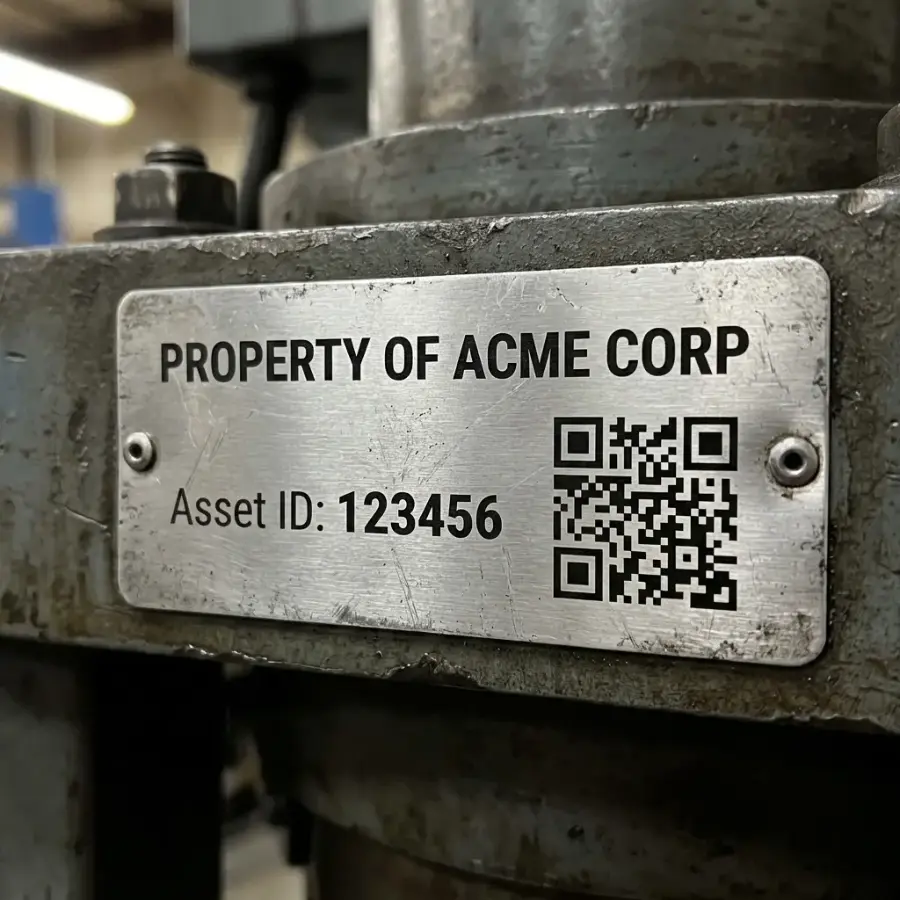
- QR Code: Primary element.
- Bind to
Asset IDor a lookup URL (e.g.,https://inventory.myco.com/view/{{Asset ID}}).
- Bind to
- Human Readable ID: Always print the
{{Asset ID}}text below the code in case the scan fails. - Company Logo: Small, usually mono-color to save space.
- "Property of...": Static text block indicating ownership.
4. Durability Tip
If printing on paper labels, cover the label with clear packing tape after applying it to protect it from abrasion and spills.
How to Print Bulk Barcode Labels from Excel or Google Sheets
Generate hundreds of barcode labels in one PDF from your inventory spreadsheet. Supports Code 128, Code 39, EAN-13, and UPC-A. Print on templates compatible with the Avery® 5167® Return Address Labels layout or any small label sheet.
Label Designer Reference — Canvas, Elements, Data Fields & Print Layout
Complete reference for the SheetsToLabels Label Designer. Learn how to use templates, text elements, dynamic text templates, images, shapes, barcodes, QR codes, layout tools, and print settings.